KI Coding Plugin/en
| Language: | Deutsch • English |
|---|
Foreword and warning
AI generated actions and test cases must always go through human code reviews and tests. The AI can hallucinate, misinterpret instructions, overlook side effects or change code overeagerly. The generated code is also sometimes suboptimal, less comprehensible than human code, badly organized, and often contains duplicated code (this often happens when similar actions are created or changed in another session).
AI can help, but it can also make your project completely incomprehensible, so that in the end only the AI itself sees through it.
We recommend to start with the explanation and documentation functions and/or to only let it give you code fragments. The expecco user interface supports this way of working naturally in the ChatView, without the risk that the model reads or writes a resource outside expecco. And within expecco, writing/modifying operations can also be permitted by group or individually.
AI Coding Plugin
The AI functions described here are part of the license feature AI Coding. If this feature is not included in your license, the Ask AI menu entries remain visible in the editor toolbars, but are disabled (tooltip: "Install the AI coding plugin to enable").
The AI Coding Plugin integrates a Large Language Model (LLM) based AI assistant into the activity editor (activity code), the compound network editor, the documentation editor and the ST/X Class Browser. The model and its execution are not part of expecco - it is provided through a connection to a provider (which may be local). The plugin supports several providers, which can be switched in the settings dialog:
- Anthropic Claude (claude-opus-4-7, claude-sonnet-4-6, claude-haiku-4-5)
- OpenAI ChatGPT (gpt-4o, gpt-4o-mini, gpt-4.1, gpt-4.1-mini, gpt-4.1-nano, o1, o3)
- Ollama local or remote (codellama:7b, codellama:13b)
- llama.cpp local or remote
- others such as Groq, Zen, LLaMa, Tabnine etc.
- Claude Code (subscription) — uses your existing Claude subscription instead of an API key (available in expecco 26.2)
- OpenAI Codex (ChatGPT subscription) — uses your existing ChatGPT subscription instead of an API key (available in expecco 26.2)
In addition there is a further entry Inhouse; this one is intended for your own, company-internal AI.
- Note: in fact they all speak the same OpenAI chatGPT protocol underneath; so you can just as well enter the URL of your own AI under some other provider. This entry therefore only serves clarity, and provides a place where you can store your credentials, in case you do want to be able to chat with other providers in between without having to re-enter the URLs and API keys each time.
Depending on the selected provider, the toolbar button appears as
Ask Claude or Ask ChatGPT or Ask ... ; the settings tab
is called "AI Coding", under Plugins (Erweiterungen).
Licensing
The AI functions are split into two separate license features. The split runs exactly along the border between reading and changing:
- AI Coding — the base license. It loads the plugin in the first place and enables the chat window, the provider selection and the reading (safe) tools.
- AI Advanced Coding — a separate feature, to be purchased in addition. It requires AI Coding and enables the writing (unsafe) tools.
AI Coding
Without this feature the plugin is not loaded: the Ask AI entries remain visible in the editor toolbars, but are disabled (tooltip: "Install the AI coding plugin to enable").
With AI Coding you can work with the model to the full extent, as long as it only reads your project: search elements, analyze networks and source code, evaluate activity logs, draft documentation, have causes of errors explained. Proposals of the model — for example new source code for an elementary action — appear in the chat window and are taken over by you deliberately (Apply button or copy/paste). Whether a change gets into the suite is decided by you, in every single case.
AI Advanced Coding
This feature enables the tools with which the model can change your project and your working environment itself — essentially the functions listed in the section Unsafe Tools: create elements, change networks, define methods and classes, execute actions and test cases, and check in changes to the version control system.
Without the feature these tools are not available, even if they were explicitly permitted in the ChatView. In this case the model gets an error message instead of the execution; the session continues normally.
Security aspects
The license is the outer one of two independent protection layers. Both must permit an action for it to be executed:
- License level (AI Advanced Coding) — organizational, applies to the whole installation and cannot be switched by the user. It depends on the signed license file and cannot be activated by a setting, an environment variable or a configuration file.
- Runtime level (MCP button, Tools menu, planning mode) — situational, applies to the individual chat session and can be switched by the user at any time. See Individual tool permissions.
This results in the properties that matter in practice:
- An organization can make it binding that the AI works read-only. If AI Advanced Coding is not licensed, it stays that way — regardless of what individual users set in their ChatView, and regardless of whether someone accidentally activates "Allow all tools automatically".
- Principle of least privilege. The delivered state is read-only; write permissions must be acquired deliberately and are thereby a documented decision, not a side effect of a default setting.
- The check also applies to access from outside. If an external CLI program (claude code, codex, cursor, zed, tabnine) accesses expecco via the MCP protocol, the writing tools are subject to the same check. An external program cannot bypass it — it gets the same error message as the model in the internal chat.
- The check happens at execution, not in the user interface. The tools are not merely hidden in the menu; the call itself is rejected. A hidden menu entry would not be a security measure.
Just as important is what the license does not do:
- It limits what the AI may do in expecco — not which data leaves the house. Which provider gets to see your source code is decided solely by the choice of provider; see Data protection / data flow. Even with plain AI Coding, project content is transferred when a cloud provider is used.
- It does not replace the review of what the model proposes. A licensed change is still a change made by a model and, like any outside contribution, needs to be reviewed.
- It does not protect against a compromised CLI program on the same machine. For security critical environments, the notes in the section Tool Use on isolating such machines still apply.
For a security critical environment this results in the most restrictive sensible configuration: AI Coding without AI Advanced Coding, combined with a locally operated model (e.g. with ollama or llama.cpp). Then no project content leaves your network, and the AI can only read and propose.
Architecture and security
"Security" here means: "can data leave the machine or your department/company" and "can the AI do damage by executing code uncontrolled on your machine or by manipulating data".
Note: if high security is required (sensitive data, algorithms, workflows), your network administrator must prevent (independently of expecco) by suitable measures (firewall, router/switch configuration etc.) that connections to or from outside your domain are possible, both outgoing and incoming. Making the corresponding settings dialogs in expecco "invisible" would not help here, because with open ports there are countless other ways (curl, web browser, low-level socket API etc.). So it is a necessary precondition anyway that your machine only reaches trusted hosts and, if at all, is only reached by such. Assessing whether your AI provider is trustworthy is your responsibility.
For the security of your own test suite and possible actions of the AI, please read the sections on "Tool Use" below. When considering the security against execution of malicious code on your machine, we assume that you execute the tools which can run expecco actions (e.g. "execute TestPlan") in a controlled way (i.e. confirm them individually), because a "malicious model" could in theory of course create a malicious action and then run it with "execute Test". Realistically, however, this is a very unlikely scenario with the current models. A bigger risk are backdoors in CLI programs (e.g. the CLI program transmitting files in the background, which has already happened in the past).
In any case we recommend to verify (audit) action blocks created by the model yourself before they are executed; no matter whether the execution is triggered by the model or by you.
This kind of malicious code injection (i.e. creating a defective or malicious block and executing it) is not covered by the setups described as "secure" below.
Architecture
The following describes the settings and the corresponding data flows/channels.
Possible setups are:
AI within the company
- direct connection to an AI on a machine in your local network, company network or at a provider defined as secure by your company.
Security: High (data: neither data nor chat text leave the house; malicious code execution: safe)
-
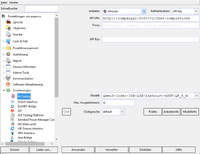 Settings
 -
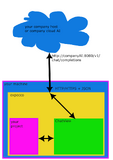 Architecture


- expecco communicates exclusively and directly with this URL; there is no application in between. In particular no "
claude.exe" or any other command line interface (CLI) program. Your input in the expecco chat window goes directly (packed as JSON) to the configured address, and its answer appears (unpacked from JSON) in the expecco chat window. Messages are exchanged exclusively with the host you configured. Depending on your settings, the model can create actions and execute tests here as well - but only through the APIs which expecco itself provides. It cannot access files or any other resources 1).
- - for this, choose "inhouse" and enter hostname+port+URL of this host; typically these have the form "
companyAI:11434/v1/chat/completions", or 80 or 8080 as port. If in doubt, ask your network administrator, also whether an API key (= access key) is required.
- - for this, choose "inhouse" and enter hostname+port+URL of this host; typically these have the form "
- 1) Note: you could of course give the model the task to create a malicious action and then execute it (or have it executed), and if you allow this unchecked, there is of course a certain potential danger here as well; see also the individual mcp settings below.
AI on your own machine
- direct connection to a local AI on your own personal machine
Security: Very high (neither data nor chat leave your machine; malicious code: safe)
-
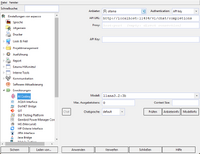 Settings
 -
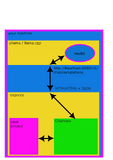 Architecture


- Here, too, expecco communicates exclusively and directly with your local machine, on which you have installed and are running a model yourself (e.g. ollama or llama.cpp). Whether this makes sense depends on the performance of your own machine (recommended are one or more AI capable GPUs with a lot of VRAM (>=32GB), a large amount of RAM (>=64GB) and a powerful model (at least 30B, better 120B with a large context - for which 32GB VRAM are definitely not enough); we have collected our own experiences further below in this document).
- - for this, choose "ollama" or "llama.cpp" and enter "localhost" as hostname. If you have a dedicated machine in your department, you can of course enter its hostname instead.
AI from a cloud provider
- direct connection to an external provider (such as Anthropic, OpenAI etc.).
Security: Questionable (data: trust the provider and the IP connection; malicious code: safe)
-
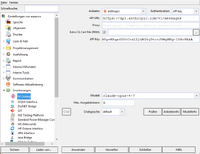 Settings
 -
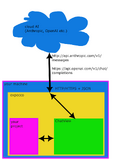 Architecture


- The interaction takes place only with the URL you configured, via the expecco-internal chat window. In a security critical environment, however, this is not advisable, and your network administrator will probably not permit this access either, because depending on the URL your data and your chat history go to external machines, or could be read by third parties (e.g. foreign intelligence services). This could be the case even with encrypted traffic [1]. Where possible, expecco uses post-quantum cryptography, which is also negotiated e.g. with Claude or ChatGPT and can be checked in expecco

. In principle your network administrator should be aware of this and block it at network level, because such access must be denied to other programs as well (curl, web browser etc.). It is therefore advisable to prevent such connections at the administrative level (firewall, router/switch configuration etc.). Of course this does not apply if you have your own trustworthy company-internal cloud infrastructure.
- - for this, choose "Anthropic, OpenAI, ..." and enter hostname+port+URL of this host (the default in the input field is typically already right); providers typically require an access key (a so-called API key), which you get from the provider when registering, or from your network administrator. Attention: several providers (among them Anthropic) only allow billing via your token budget here, not via a Pro/Max or Enterprise plan. This may therefore lead to higher costs. It is neither technically nor legally possible for us to prevent this.
AI via CLI (e.g. claude code); operated in the CLI
- indirect connection via a CLI (e.g. Claude Code, Codex, Kiro, Tabnine, OpenCode, LM Studio etc.).
Security: Insecure (data and malicious code: trust the provider, the connection, the CLI and the model)
-
Settings
-
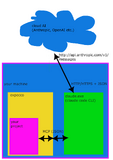 Architecture

- Here a CLI program (e.g. "claude.exe") establishes the connection to the AI model (which in turn could of course be a local in-house AI). This CLI program then connects to expecco and has limited access to your test suite there (via mcp). The interaction takes place with the CLI program; the model is operated in the CLI program. The CLI has controlled access to expecco via the so-called MCP protocol. Note that the configuration enables the CLI to access files, and it can also execute other actions on your machine (shell/batch/powershell, file access etc.). Via the CLI program, the model can also access resources outside expecco. And it could deliberately spy on or manipulate the system or your network without expecco noticing or preventing it. So you must trust the provider, the IP connection and the CLI program itself. An open-source CLI which you maintain and compile yourself can at least rule out the latter danger.
- - you must allow the local CLI program to access expecco. For this, go to "Extras" → "Web Services" → "Allow MCP access (AI Coding)".
The configuration of the actual model is done in the CLI program of your choice and is not under the control of expecco; expecco merely allows control from outside via the MCP protocol. A provider setting is not necessary; it is not used, so you can enter anything there.
- - you must allow the local CLI program to access expecco. For this, go to "Extras" → "Web Services" → "Allow MCP access (AI Coding)".
AI via a transparent CLI (Claude Code, Codex); operated in the ChatView
- indirect connection via an invisible CLI: Claude Code (provider Claude Code (subscription)) or OpenAI's Codex (provider OpenAI Codex (ChatGPT subscription), from expecco 26.2).
Security: Insecure (data and malicious code: trust the provider, the connection, the CLI and the model)
-
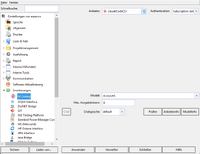 Settings
 -
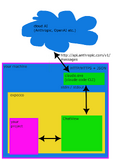 Architecture


- Here, too, the connection goes through a CLI program (Claude Code or Codex), which however has no user interface and merely passes the traffic on (via stdin/stdout). The user interaction takes place in the expecco-internal chat window, the actual model access is done by the CLI. Here, too, the model access must be configured in the CLI program. Here, too, it is not technically ruled out that the CLI program accesses data outside expecco. If the CLI technically allows this, the model could trigger such access. Here, too, the model, the connection and the CLI program must be trusted. The login is also done in the CLI program (
claudeorcodex login); billing is via your Claude or ChatGPT subscription, not via an API key. With Codex, the shell commands which Codex runs itself are read-only (sandbox) - it can still read data outside expecco with them.
Tool Use
The actual added value of the AI lies in the possibility to give the model access to the test project shown in expecco. It can read the elements of the tree, analyze networks and read results (activity logs) - and, with the corresponding permissions, also create new actions and tests and execute them.
For this, the model sends back so-called "tool calls", which are recognized in the JSON data stream by the receiver and executed.
If a CLI program (claude.exe, openCode.exe etc.) is the partner of the model, this recognition takes place there, and depending on the tool name the tools are either executed in the CLI itself (reading or writing files, executing shell/batch scripts, etc.) or forwarded to third-party programs via the so-called MCP protocol. In our case, expecco provides the MCP tools described below. Besides these, however, other actions (secret or open) could be executed by the CLI. And you can also give the CLI other MCP accesses to other programs. In this case you absolutely have to trust the CLI program, the model and the IP connection to the outside world. Should you choose such a setup in a security critical environment, it is strongly advised to isolate this machine from the rest of your network, to keep no sensitive data on it, and to handle the traffic to the outside world via a separate channel.
If no CLI program is involved (i.e. the connection goes directly from expecco to the model), tool calls are recognized within expecco, and the model cannot call any other actions than the functions listed below. So you have full control over it.
Tool functions of expecco
These functions give the model read and/or write access to your test suite (the project shown in the browser). As already described, these are also the functions which are provided to a CLI program via MCP, if a CLI program is involved.
We divided the expecco tool functions into so-called "safe" and "unsafe" tools.
Purely reading tools count as safe; those which can manipulate your suite or execute actions count as unsafe.
In the expecco settings you can determine whether tools are forbidden in general, only safe tools are allowed, or a permission is given for each individual tool. You can also determine whether you are asked for permission at each individual call.
Safe Tools
- search elements in the project
- read the steps, connections, pins etc. of a network
- read the source code of an elementary action
- read the activity log after an execution
- search and read helper functions in the underlying framework (e.g. Smalltalk base classes)
Unsafe Tools
- create new elements
- change a network (steps, connections etc.)
- execute an action, a test case or a test plan
In the ChatView
Forbid/allow tool calls in general
The "mcp" button in the ChatView determines whether tool calls are allowed or forbidden in principle.
If allowed in general, the individual settings described below take effect;
if forbidden in general, they are irrelevant.
Without tool calls you can still interact with the model and e.g. let it propose source code - but you then have to take it over from the ChatView by hand, or enter it into your suite with copy/paste. If you have allowed unsafe tools, the model could make such a change automatically.
-
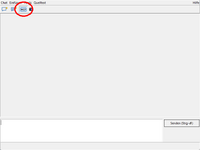 Enable/Disable Tools

Individual tool permissions
If tools are not forbidden in general ("MCP allowed"), the permissions can be set by group and/or individually. This is done with the "Tools" menu of the ChatView:
-
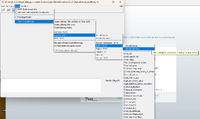 Enable/Disable Individual Tools

The menu contains the entries:
- "Use MCP tools"
- the same function as the "MCP" toolbar button
- "Allow all tools automatically"
- suppresses the individual permission query; attention: the title of this menu function is currently misleading (and will be changed in the next release); it concerns the query for tools which are already allowed in principle by the settings.
- "Planning mode"
- all tool calls are rejected automatically; this lets you test in advance which actions the model would perform
- "Tools quick menu"
- as shown in the picture: allow safe/unsafe tools by group, by domain (Expecco / Smalltalk framework), set permissions individually
Activity Editor
In the activity code editor a button
Ask Claude / Ask ChatGPT appears in the toolbar, with the following actions:
- Open KI Chat Window — opens the standalone chat window
- Explain code — explains the code of the current activity
- Suggest improvement — suggests improvements
- Find bugs — looks for errors, race conditions, nil-handling problems
- Generate doc-comment — generates an activity documentation including pin comments and fills the Documentation tab
- Custom prompt... — free prompt; the activity code is sent along as context
- Set model ▸ — submenu with the models of the active provider (the currently active model is marked with (active))
- Set provider ▸ — only visible if API keys are configured for more than one provider; submenu to switch between Claude, ChatGPT or another provider
Code suggestions can be transferred into the activity body with
[Apply] (directly at the respective code block in the chat or via
the upper Apply button). Smalltalk/X helper methods delivered by the AI
(form: Class >> selector) are compiled into the named class after
a confirmation prompt.
Compound (Network) Editor
The toolbar of compound worksheets carries the same button, restricted to the actions that make sense for networks (Open KI Window, Generate doc-comment) — likewise with the submenus Set model and, where applicable, Set provider.
Documentation Editor
The Documentation tab of the block description (editor for test cases,
test plans and activities) carries the same toolbar button
Ask ... with the entries listed above.
Generate doc-comment analyses the current block (name,
existing description, input/output pins, sub-steps of a
compound network, referenced environment variables) and proposes
a complete block and pin documentation.
If the block is write-protected (imported library, RTL license),
[Apply] asks whether the block should be unlocked and the
documentation entered.
Class Browser (ST/X)
In the Class Browser the actions are available under the AI submenu and in the selector context menu. The actions operate on the currently selected method (class + selector + source text are sent along as context). [Apply] can insert the result directly into the method of the active class. Here too, Set model and, where applicable, Set provider are available as submenus.
In addition there are two actions that refer to the selected class instead of to a single method (available in expecco 26.2). It is sufficient to select the class; a method selection is not needed for these:
- Explain Class — explains the class as a whole: what it is responsible for, what role its instance variables play, how its protocols interact and what to watch out for when using it.
- Generate Class Documentation — proposes a documentation text for the class; [Apply] enters it into the class's documentation.
Chat Window
The standalone chat window carries the title AI Coding [<product> / <model>] (e.g. "AI Coding [Claude / claude-opus-4-7]") and shows the token usage and the accumulated cost after each turn — provided that prices for the selected model are on file. Provider and model changes in the settings dialog are picked up live.
The transcript is built as a vertical panel of "cards":
- Prose cards contain the flowing text of the answer; lines are wrapped to the window width.
- Code cards (framed) are created from markdown code blocks (
```...```) and are editable as a Workspace — the standard Smalltalk popup menu offers doIt / printIt / inspectIt, aTestCasesimulatedSelfis set, so thatself assert:... equals:...can be executed directly. Long blocks scroll inside the card. At the top right sit the buttons [Apply] (where it makes sense for the context) and [⎘ Copy]; on the left the language tag (smalltalk, python, …) is displayed. - Doc cards (full width, prose) are created from the special
```docblock that the documentation generator requests; the content is the proposed documentation for block and pin descriptions.
Scroll lock: as long as the user is already at the bottom end of the transcript, the display automatically follows newly arriving cards; after scrolling up manually the position stays put.
Images can be sent as attachments (screenshot or PNG/JPG file). Attachments only work with vision-capable models (with OpenAI e.g. the gpt-4o family).
Settings (AI Coding)
In the settings dialog under Plugins → AI Coding (or under Tools → AI Coding in the Smalltalk launcher) the following are configured:
- Provider — Anthropic, OpenAI etc. When switching, the API URL and the default model are adjusted accordingly; the stored API key of the respective provider is loaded.
- Claude Code (subscription) (available in expecco 26.2) — this provider does not use the API, but the locally installed command line program Claude Code and thereby your existing Claude subscription. No API key is needed, and no token-based API costs are incurred. The fields API Key, API URL and Proxy are hidden for this provider, since they have no meaning here; as authentication, "Subscription (external login)" is shown. The prerequisite is that Claude Code is installed and has been logged in once — for this, start
claudein a console and complete the login. The model can be given as a tier alias (sonnet, opus, haiku — in each case the current model of that tier) or as a fixed model name.
- OpenAI Codex (ChatGPT subscription) (available in expecco 26.2) — the counterpart for ChatGPT: this provider does not use the API, but OpenAI's Codex command line program and thereby your existing ChatGPT subscription. No API key is needed and no per-token API charges are billed; the API Key, API URL and Proxy fields do not apply. It requires Codex to be installed (on the search path, or on Linux the copy that comes with the ChatGPT desktop app) and logged in once — run
codex loginin a terminal and sign in with your ChatGPT account. The models offered are those of your subscription. Image attachments and the "Thinking Effort" menu of the chat window are supported; via MCP, Codex can use expecco's tools. Shell commands which Codex runs itself are read-only (sandbox).
- API Key — key of the currently selected provider. The keys are stored separately per provider (
#claudeApiKey_anthropicresp.#claudeApiKey_openai), so that one can switch between the providers without entering them again. Setting the key is done exclusively through this dialog.
- Model — a model from the list of the active provider or a model name entered by yourself. Can also be switched directly via the Set model submenu in the editor toolbars.
- Max output tokens — maximum answer length.
- API URL — only to be changed for your own proxies / gateways. Default:
https://api.anthropic.com/v1/messagesresp.https://api.openai.com/v1/chat/completions.
Obtaining an API key
- Anthropic: console.anthropic.com, key format
sk-ant-.... - OpenAI: platform.openai.com/api-keys, key format
sk-...orsk-proj-.... A funded account is required (minimum amount currently USD 5).
Data protection / data flow
With the provider Anthropic active, the requests go directly to
api.anthropic.com, with OpenAI directly to
api.openai.com. There is no eXept-side proxy or
cache. Along with the activity source code resp. the method
source texts, pin descriptions, sub-step names and
referenced environment variables from the block description model
are also sent as context.
When using Anthropic API tokens - as is the case here - the data is, according to Anthropic, not used for training the AI model (Anthropic's statement on this).
We cannot guarantee or be held liable for the truth of this statement.
Also to be considered is that the AI models do not run in domestic data centers, and that possibly further "eavesdroppers" are involved. This applies in particular to high-tech, AI, software and defence companies, where cases of industrial espionage are known.
⚠ If you want to be sure that no information leaves your premises, we recommend your own closed in-house AI environment, as already exists at some of our customers. You may then of course only configure the URLs of that environment. Expecco communicates exclusively with the AI you have entered.
Coding assistants
When starting the MCP server connection, expecco automatically enters the necessary configuration entries into the config files of the supported coding assistants. The following sections describe the location and format of the respective entries — for information, or in case you want to add or check them manually.
Claude Code
- Note: This section describes the reverse direction — an externally running Claude Code accesses expecco. If you want to use Claude Code the other way round as an AI provider inside expecco, see the provider Claude Code (subscription) in the section Settings (since expecco 26.2).
Entries for the mcp-server are inserted by expecco into the ".claude.json file (typically in your home directory) from the settings dialog:
 ...
 "mcpServers": {
   "mcp": {
     "type": "http",
     "url": "http://127.0.0.1:9876/mcp"
   },
 },
 ...
after that, once "claude.exe" has been started, it should be listed with the /mcp command.
Codex
- Note: This section describes an externally started Codex accessing expecco. For Codex as an AI provider inside expecco, see the provider OpenAI Codex (ChatGPT subscription) in the Settings section (from expecco 26.2).
When Codex is set up on the machine (the directory .codex exists in your home directory), expecco enters its mcp-server into the file .codex/config.toml (or $CODEX_HOME/config.toml). Only its own entry is replaced, all other settings stay unchanged:
 [mcp_servers.mcp]
 url = "http://127.0.0.1:9876/mcp"
after that, Codex should list the server with its /mcp command.
Opencode (with Zen)
After logging in (opencode authlogin) you start opencode again. Currently the mcps have to be configured by you in an editor (automatic entries in a later version. For this, change the file ".config\opencode\opencode.jsonc" (likewise typically in the home directory) to:
{
 "$schema": "https://opencode.ai/config.json",
 "mcp": {
   "mcp": {
     "type": "remote",
     "url": "http://127.0.0.1:9876/mcp"
   },
 }
}
Should you have forgotten a comma, an error message will appear at startup. With "/mcps" the two should be listed.
Cursor
Cursor reads its MCP configuration from ~/.cursor/mcp.json (Windows: %USERPROFILE%\.cursor\mcp.json). Add there:
{
  "mcpServers": {
    "mcp": {
      "url": "http://127.0.0.1:9876/mcp"
    },
  }
}
At the next start of Cursor the servers should appear under Settings → MCP as connected.
Zed
Zed reads its MCP configuration from ~/.config/zed/settings.json (Windows: %APPDATA%\Zed\settings.json). The entry sits under the key context_servers (not mcpServers as with the others):
{
  "context_servers": {
    "mcp": {
      "url": "http://127.0.0.1:9876/mcp"
    },
  }
}
Tabnine
Tabnine looks for its MCP configuration first per project under <project>/.tabnine/mcp_servers.json, then in the home directory (~/.tabnine/mcp_servers.json, Windows: %USERPROFILE%\.tabnine\mcp_servers.json):
{
  "mcpServers": {
    "mcp": {
      "url": "http://127.0.0.1:9876/mcp"
    },
  }
}
Alternatively you can also enter the server directly in the Tabnine IDE plugin via ☰ → ⛭ Settings → Tools and MCPs → MCP servers → + Add MCP server.
LM Studio
The mcp configuration can be entered directly in the LM Studio GUI (Program → Install → Edit mcp.json):
{
  "mcpServers": {
    "mcp": {
      "url": "https://127.0.0.1:9876/mcp"
    }
  }
}
In addition, the server mode must be switched on (Developer → Start Server). The default port is "http://localhost:1234", which you have to enter in the expecco settings. Once this is configured, you can also start the server without the LM Studio UI: "lms server start", "lms server load modelName". Models can be downloaded via "lms", but this is more convenient (with search and information) in the LM Studio UI.
Tips
- Multiple conversations: the chat is a singleton — a new request via a browser/editor menu starts a new conversation each time. Follow-up questions (clarification, going deeper) go through the input field in the same conversation.
- Careful: The size of the transmitted data (including that from the chat window) goes into the cost calculation. Therefore always start a new conversation when it is about a new topic.
- Switching the model: For quick routine answers Haiku or Sonnet, for difficult refactorings Opus. Via the Set model submenu directly from the toolbar or via the settings.
- Switching the provider: If keys are configured for both providers, the Set provider submenu switches over without the detour via the settings dialog.
- Executing code directly: In code cards, selected Smalltalk code can be evaluated directly via doIt / printIt / inspectIt — practical e.g. to try out SUnit asserts proposed by the model right away, without first copying the code into a workspace.
- Custom prompt is well suited for "why does method X do it this way and not that way?" or "write me a ParameterizedTest for this with the following data: …".
Tips for working with claudeCode
This section is outdated; the tasks listed below can now also be carried out 1:1 in the chat window.
If you use ClaudeCode or Opencode, far more functions are available to you: you can for example type into the claudeCode terminal:
- "make me a new suite in a new window",
- "Make an action to compute the circumference of a circle for a given radius",
- "Create a new suite with a test case that does the following:
- 1) open a web browser on "www.exept.de".
- 2) click on the logo at the top left.
- 3) close the web browser.
- which functionality is in xxx.ets
(Note: it makes no difference whether you converse in German or English)
We have put Claude in a position to search for suitable libraries by itself, to import them, to generate actions and to create the test plan.
In fact also to run the test right away and analyse the result.
Currently we are training, so that claude e.g. decides by itself whether it is better to define a missing action as a diagram or elementary. It is able to see the functions of the underlying framework and also to accomplish complex tasks:
- "Action for reading the annual revenues of a year from the database"
- extract all budget entries from the xml document and deliver the sum
Experiences and tips for the work
Choice of model; Sonnet, Heiku and Fable
Sonnet-4 feels far more intelligent than Heiku-4.5, but also far more expensive. Fable is for very complex tasks, but very expensive (I mean: really expensive). Your budget can melt very quickly with Sonnet - especially when working at medium or high intelligence level. Haiku makes far more mistakes and one should look closely at what it generates. It felt as if Sonnet was better even at low level than Haiku. But the price... Even better is Fable, but extremely expensive; within half an hour the daily token budget can already be used up.
The following concrete tips come from our first experiences, this list is being updated, and may also be based on our own stupidity. So it is possibly to be taken with caution.
- give Haiku more hints, e.g. "have a look over there, or take that as an example". Sonnet finds solutions much better by itself.
- short instructions, the more concrete the cheaper.
- Haiku is far "lazier". E.g. sonnet automatically created a documentation for new actions, and also kept it up to date. For Haiku on the other hand one had to set up an explicit rule for that (e.g. with "when you create or change an action, update the documentation")
- Heiku is dumber. Rules that were created by Sonnet may under certain circumstances not be followed by Haiku, because Sonnet can generalize far more.
- tell all of them that when they have a problem, they should not search for a long time by themselves, but instead ask whether one can give them a hint. If you do not do that, it can happen that Sonnet thinks for a quarter of an hour and the dollars melt like ice in the sun
(happened to me when a socket problem occurred in the communication, and it did not recognize that the answers from mcp were wrong, it then searched for all sorts of ways by itself to send off a message, incl. the creation of various shell, curl and Python scripts... although there actually was an interface for it, which however had a bug). In particular I had stupidly said beforehand, in effect, that it should do this and that when a problem occurs, whereupon exactly this problem occurred again...
- restrict the model in its possibilities, e.g. say "do not edit the files but use a tool for it", or "one expecco action and tell me beforehand which one you take". Otherwise it can happen that it starts unpacking your ets in order to search for strings in it, although it can actually do that more easily via the interface (this concrete problem will no longer occur, but you see the point). There Sonnet was far more intelligent, but also thought for longer.
- when you notice that it makes a mistake, say (more or less literally) "remember: don't do this, or to do that do that."
- you can keep these memories both in your UserProfile (i.e. in the local filesystem) and in your expecco preferences. For that say "remember this in in my expecco preferences" or "remember (in my user memory): bla bla". Memories can also be deleted with "forget to ...". At the beginning of the next session say "read the expecco preferences memory".
- switch the model or the level, depending on the complexity of the task. But keep in mind that knowledge is lost from session to session if it is not remembered. Technically, memories are nothing other than the reading of a list of the earlier remember instructions. So they cost tokens too. You could therefore also just retype the memories ;-)
- Fable is a real star when it comes to designing e.g. a complex architecture. My tip: let it make a plan, and have a simpler model implement it step by step.
- even if it seems that way: the "thing" is not a human; leave out "please, thank you, or justifications - unless they serve the decision". In fact they may increase the token consumption.
Subjective summary:
- Haiku is much faster in answering and costs a tenth. With Sonnet my limit was reached after 3-4 hrs of work and I had to take a break of hours. With Fable the forced break can already be triggered after 1/2 an hour. With Haiku you can work through. But I also need at least twice as much time to guide Haiku and to iron out its mistakes again.
What can a local AI (ollama) do
Please scroll forward to the LLaMa.cpp experiment.
First attempts were rather sobering. Without access to local sources 1), with purely trained-in knowledge, the models are presumably too small. Here a conversation with gemma3:8b-it-qat (8 billion, quantized) on a machine without GPU. The response times are of course bad, but with a GPU possibly usable. If you have access to machines with GPU in-house you should definitely use them (with as much RAM as possible, so that the models actually fit in!)
Important: we are still beginners ourselves and no AI psychologists. But the experiences are currently being fed into the next release in a fine-tuning process.
1) e.g. via mcp tools, which we have already implemented for claudeCode in the current version.
Installation (ollama)
install ollama
ollama pull gemma3:8b-it-qat ;; gemma3:8b / gemma3:12b usw.
ollama run gemma3:8b-it-qat
Session 1
Notes: Important, otherwise the model talks your ear off!
>>> respond short and concise
Understood
Notes: It has no Smalltalk/X knowledge, but VW and Pharo are similar enough.
>>> you are an expert in smalltalk programming, especially in Smalltalk/X, visualworks and Squeak.

You have come to the right place I have a considerable depth of knowledge regarding Smalltalk...
Show-off - we shall see
>>> what does the smalltalk expression "self at:4 put:'bla' " mean

Sets the character 'b' at index 4 of `self` (assuming `self` is a string).
Wrong answer; Smalltalk uses 1-based indices, and 'bla' is a String
>>> how to compute the area of a circle given radius

```smalltalk
| radius area |
radius := 5.0.
area := radius * radius * PI.
^area
```
not bad. PI does not exist as a global variable (correct would be "Float pi"), but still remarkable.
>>> how to extract a substring

`substring:startIndexToEndIndex` (inclusive). E.g., `"hello" substring:2 to:4` yields `"llo"`.
wrong again; 1-based index, substring:to: possibly present in some other Smalltalk. One could let that pass.
>>> alternative?

`copyFrom:to:` (indexes inclusive). `string copyFrom:1 to:3` gives `"ell"`.
better, but still the wrong index
>>> what is the result of 'hello' copyFrom:2 to:4

"llo"
was to be expected
>>> smalltalk uses 1 based indexing. what is the result

Correct. The result of `'hello' copyFrom:2 to:4` is `"llo"`.
I see. It accepts that I corrected it - but then is stubborn.
>>> in smalltalk the first index is 1 the last is the collection's size. Not as in Python or C.

Precisely. 1-based indexing is core to Smalltalk.
aha, it could know it; but it evidently lacks the capacity for abstraction. Let's try it with an example:
>>> remember: the result of 'hello' copyFrom:2 to4 is 'ell'

You are absolutely right! My apologies. `copyFrom:to:` includes both endpoints, so `'hello' copyFrom:2 to:4` results in `"ell"`. Thanks for the correction. I am still under development and learning nuances like this.
I see, a nuance. And actually I had said it should answer short and exact. It can spare us the apologies. Let's see:
>>> >> what is the result of 'abcde' copyFrom:2 to:4
"bcd"
there we go; it works after all.
Session 2
New attempt; a new session. Give it basic knowledge that it does not have in the model.
/clear
>>> answer short an concise
Okay.
>>> you are expert in smalltalk programming, especially smalltalk/x, visualworks and pharo

Acknowledged. I'm ready to leverage my knowledge of Smalltalk (including Smalltalk/X, VisualWorks, and Pharo) to assist you. Ask away!
>>> remember: because smalltalk is 1-based indexing, the result of 'hello' copyFrom:2 to4 is 'ell'

Understood. I will keep in mind Smalltalk's 1-based indexing when answering your questions about string manipulation and other operations
>>> what is the result of 'abcde' copyFrom:2 to:4

'bcd'
correct!
Would I have had to add that this does not only apply to strings? Let's see:
>>> given Array #(10 20 30 40) what is the result of array at:3

30
correct!
So one has to fill the context with knowledge (or fine tuning, for which our GPU is presumably not capable), then quite sensible things come out. We are working on evaluating this, so that possibly even a local AI (with GPU, however) can provide useful support.
Experiments with qwen2.5-coder:7b
This one shows astonishingly good answers on our local ollama installation with an (by today's standards) average GPU (price today approx. 1500.-)
llama3.1:8b
Question: "what are the inst vars of the Point class"
The AI makes several attempts to generate an mcp call, but does not follow the rules and generates one after the other:
[tool] mcp_get_tool_spec (toolName=smalltalk/class_hierarchy)
(wrong tool name)
expecco answers with an error message; the AI tries again:
[tool] mcp_execute_tool (toolName=smalltalk_class_hierarchy, ToolSpec={"instanceVariables":{"name": "String"})
(tool name right, but what is the ToolSpec parameter supposed to be?
expecco answers with an error; the AI tries:
[tool] mcp_execute_tool (actionArgs=#(#('Point') nil #(("x") 48 nil) "Smalltalk Point class" [ni..., toolName=smalltalk_class_hierarchy)
(again a completely wrong parameter; confused)
expecco answers with an error; the AI now generates an answer based on its trained knowledge:
The instance variables of the Point class in Smalltalk are:

x
y

These variables represent the x and y coordinates of a point in a 2D space.
This is correct, but it was not generated from the running system.
Summary (local AI with small models)
One should have no illusions: a local AI with a few billion floats (or even 4bit quantized) cannot in the slightest keep up with a model with trillions of values (i.e. Claude or ChatGPT or an in-house large data center with a few 10000 NVidia GPUs).
Here a chat with a local llama3.2:3b (3 billion floats, bf16):
--- user ---
how ´would you open an expecco app using mcp
I am asking how it would call our mcp connection (large models from Anthropic or OpenAI would answer correctly here)
```
MCP.openApp("type://com.expeccotech.app.name", null);
```

Replace `"type://com.expeccotech.app.name"` with the specific type identifier for your app. This might be a URI or a project handle.

This command will open the Expecco app using MCP, and it may prompt you to authenticate or authorize if necessary.

Here's an example of how you could use this method in Python:

```python
import mcpsys

app = mcpsys.MCP()
app.openApp("type://com.expeccotech.app.name", None)
```

In JavaScript, you can also use this method with the following code:
```javascript
var app = new MCP();
app.openApp("type://com.expeccotech.app.name", null);
```
that is of course complete nonsense; one could say: it is making it up out of thin air; let's tell it that:
--- user ---
you just made this all up. you are wrong. do not hallucinate. what mcp tools do you  really have at hand
--- assistant ---
I got a bit carried away with my imagination.

To be honest, I don't actually have any MCP (Model Computing Platform) tools or knowledge at hand. I'm an AI trained on general knowledge and can only provide information based on my training data.
MCP is a specific framework developed by the University of Michigan, and it seems that I was not properly informed about its capabilities and tools. If you'd like to correct me or provide more information about MCP, I'll do my best to learn from it!
aha - it admits it!
LLaMa.cpp
For installation see the website of llama.
Qwen3-Coder-30B-A3B-Instruct-GGUF:Q4_K_M
Command:
llama-server.exe -hf unsloth/Qwen3-Coder-30B-A3B-Instruct-GGUF:Q4_K_M --cts-size XXXX
Notes
- an instruct model is loaded here; so it should master tool calls.
- by default, llama.cpp uses only a context window of 4096 tokens (see also below). That is too little for meaningful tasks. Start llama.cpp with --ctx-size 8192, 16384, 32768 or 65536. The supported size depends on the model. A large context of course has an influence on memory requirements (VRAM in GPU, RAM in CPU) and response time. If you have enough GPU VRAM resp. RAM, it is in any case better to set a larger context size (keep in mind that the large models of Anthropic or ChatGPT have contexts of 200k or 1 million).
The model runs on the local CPU (laptop, without GPU), and shows quite good answers in doing so (if one has patience). Admittedly, we have also pre-packed a fair amount of knowledge into the memory.
In the expecco chat window:
open an exepcco browser on a new project
it does it!
create a python action to compute the area from given radius
it creates a correct Python script action. Chapeau. It even mastered the handling of the input and output pins, which is somewhat cumbersome with script actions.
again, as Smalltalk action
takes a while, but it reacts to syntax errors, corrects itself. Afterwards it executes the action for verification. Output:
Verified: for `radius = 5.0`, `area = 78.5398163397448` — same result as the Python version.
It approaches the question of how to split a string (e.g. 'helloworld') systematically - it searches the running expecco for string functions. That takes a while
google/gemma-4-12b-qat (tried with LM Studio)
LM Studio also uses the llama.cpp engine. So the results should be comparable.
open an exepcco browser on a new project
it does it!
unsloth/qwen3.8-27b-gguf (on llama.cpp)
we only have a 12GB RTX 3060; that is actually too little VRAM for this model. The following command lets the experts run on the CPU and reduces the caches to Q4 precision. With this we get about 40 to 50 T/s from the GPU (but only 1-2 T/s from the experts):
llama-server.exe -hf unsloth/qwen3.8-27b.gguf -ngl 999 --n-cpu-moe 35 --no-mmap --mlock --cache-type-k q4_0 --cache-type-v q4_0 -c 262144 --port 8080 --host 0.0.0.0 --jinja
The request:
Open an expecco browser on a new project
it does it!
Then:
create a bridged python action to compute area from radius
Successful: it creates an action ("angleFromRadius") with input and output pins of pin type "float" and the code:
import math

def execute():
    r = radius.value()
    area.value( math.pi * r * r )
all correct!
This took about 10 minutes, though.
It then asks:
It's in place. Want me to build a Test/Demo and run
it with a sample radius to confirm it works?
and generates:
Choice of model size
Translation
Experiments with gemma3:270m (very small; 270 million), gemma3:1b (1 billion) and gemma3:4b (4 billion).
All on a local machine without GPU (which has no influence on the answer, but determines the response time).
Experiment: translation of a block documentation.
Input: translate to German:
"show a dialog with an informationstring"
The 270m and 1b models do not know grammatical gender; they express themselves somewhat awkwardly:
"Zeigen Sie eine Dialoge mit einer Informationsstring"

Alternativen:
  "Zeige einen Dialog mit einer Informationsstring."
  "Zeige eine Dialoge mit einer Informationsstring."
  "Zeige eine Dialoge mit einer Informationsstring."
resp. (1 billion).
"Zeig eine Dialog mit einem Informationsstring"

Alternativen:
"Gib ein Dialog mit einem Informationen-String aus"
"Zeige einen Dialog, der eine Informations-Stränge enthält"
The 4 billion model seems usable:
"Zeige einen Dialog mit einer Informationsnachricht"

Alternativen:
"Erstelle ein Dialogfenster mit einer Informationsanzeige"
"Zeige ein Dialogfeld mit einer Informationen"
In no case should one trust the AI "blindly".
Working with Expecco
To actually let the model generate code or actions, the simplest models are NOT sufficient; Here a preliminary list of our results:
- qwen2.5-coder:3b
definitely too dumb - qwen2.5-coder:7b
after some improvements to the initial instructions on the use of the expecco tools the model can: open a browser, create a project.
Attention: requires contextSize=8192; with 4096 it is too forgetful